For Tally Prime users, accountants, and businesses

Bison BankSync

Import Bank Statements into Tally Prime in Seconds.

Convert bank statements from Excel, CSV, and text-based PDF into Tally-ready imports. Select the exact Tally bank ledger, check existing entries, and import new vouchers under Suspense without uploading customer bank data to our server.

Local processing Tally ledger fetch Duplicate check
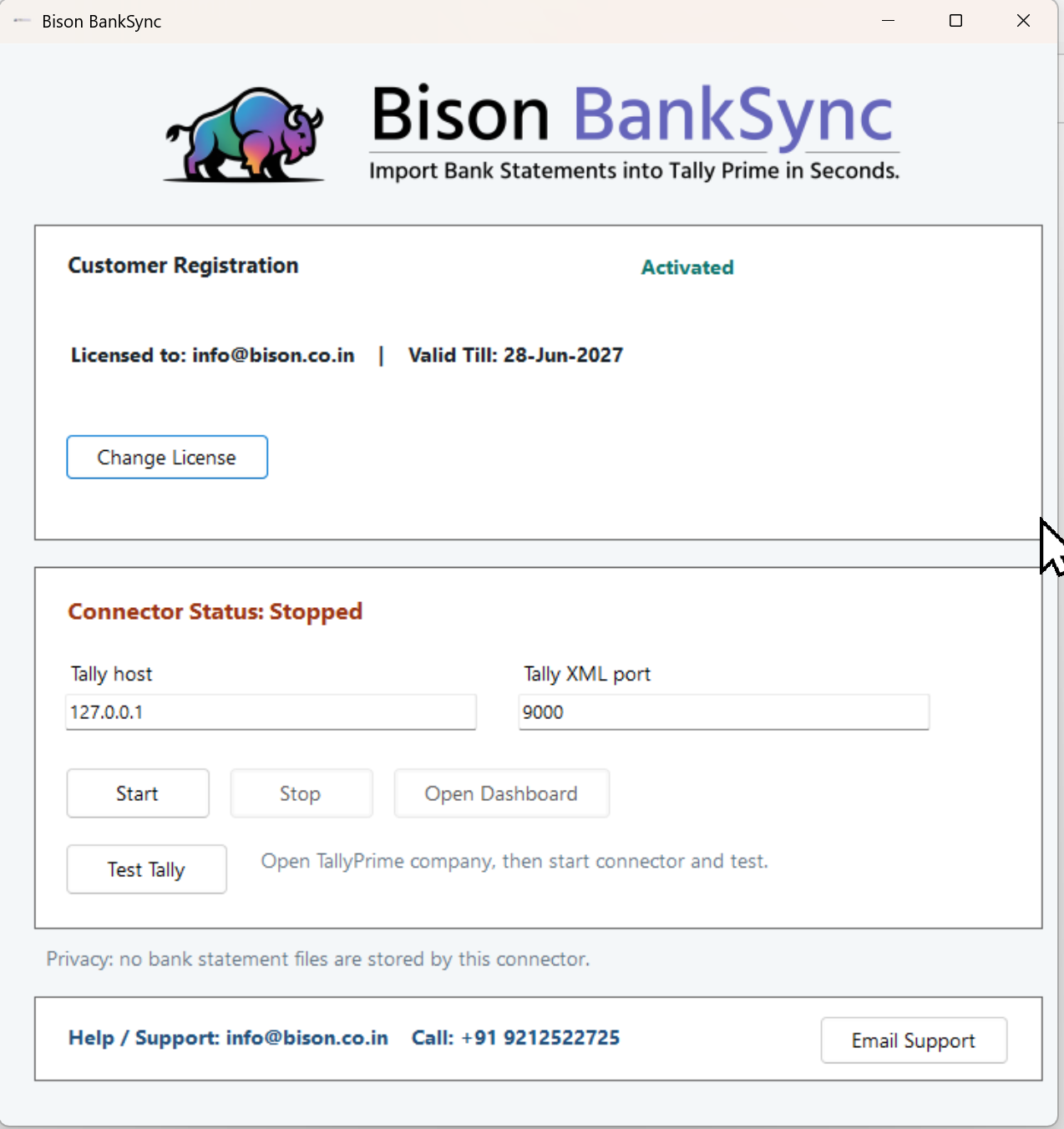
Bison BankSync desktop connector screenshot
Statement formatsExcel, CSV, text-based PDF
Tally connectionLocal PC or VPS Tally Prime XML port
Import ledgerBank ledger with Suspense entry
Support+91 9212522725

What it does

Designed for practical Tally bank import work

Bison BankSync keeps the customer workflow simple while handling the important import logic in the background.

Fetch Bank Ledgers from Tally

The connector reads Bank Accounts ledgers from the opened Tally company, so users can select the correct bank ledger without manual copy-paste.

Import under Suspense

Bank statement credit and debit entries are converted correctly for Tally accounting and posted against Suspense for later adjustment.

Duplicate Protection

Before import, the app can compare existing Tally bank vouchers by date, side, amount, and selected bank ledger to avoid duplicate entries.

Local File Processing

Bank statement files are processed in the browser and local connector workflow. The converter does not store bank statement files on Bison servers.

Flexible Tally Port

Customers can use Tally XML port 9000 or any other configured port. The desktop connector remembers the last successful host and port.

Licensed Desktop Connector

The Windows connector is activated customer-wise and machine-wise. It includes support details and disconnects automatically when closed.

Product screens
Clear screens for connector, conversion, and import

Desktop connector screen
Desktop connector with license, Tally host, Tally port, and support details.
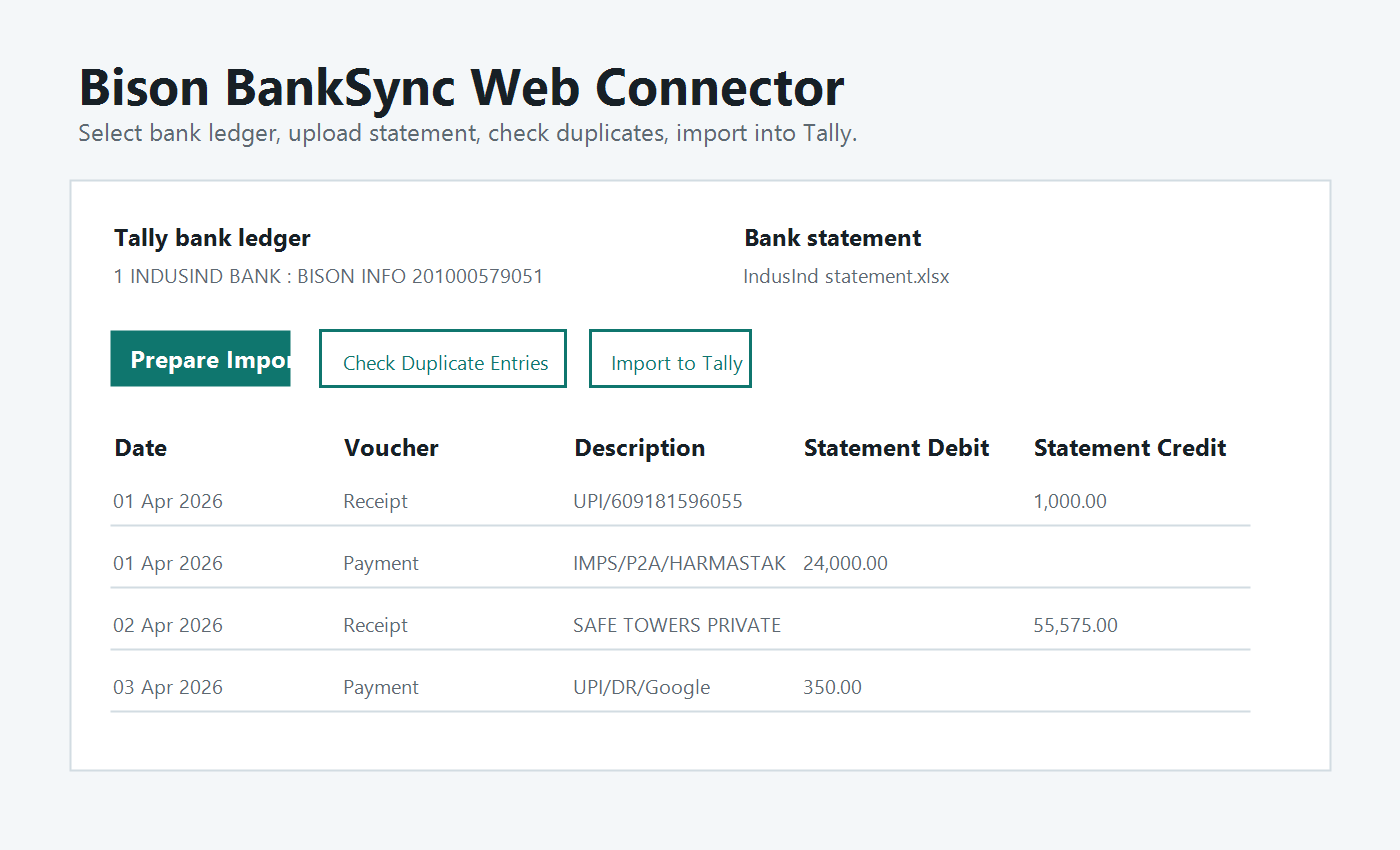
Web connector converter screen
Web connector screen for selecting bank ledger, preparing import, checking duplicates, and importing to Tally.
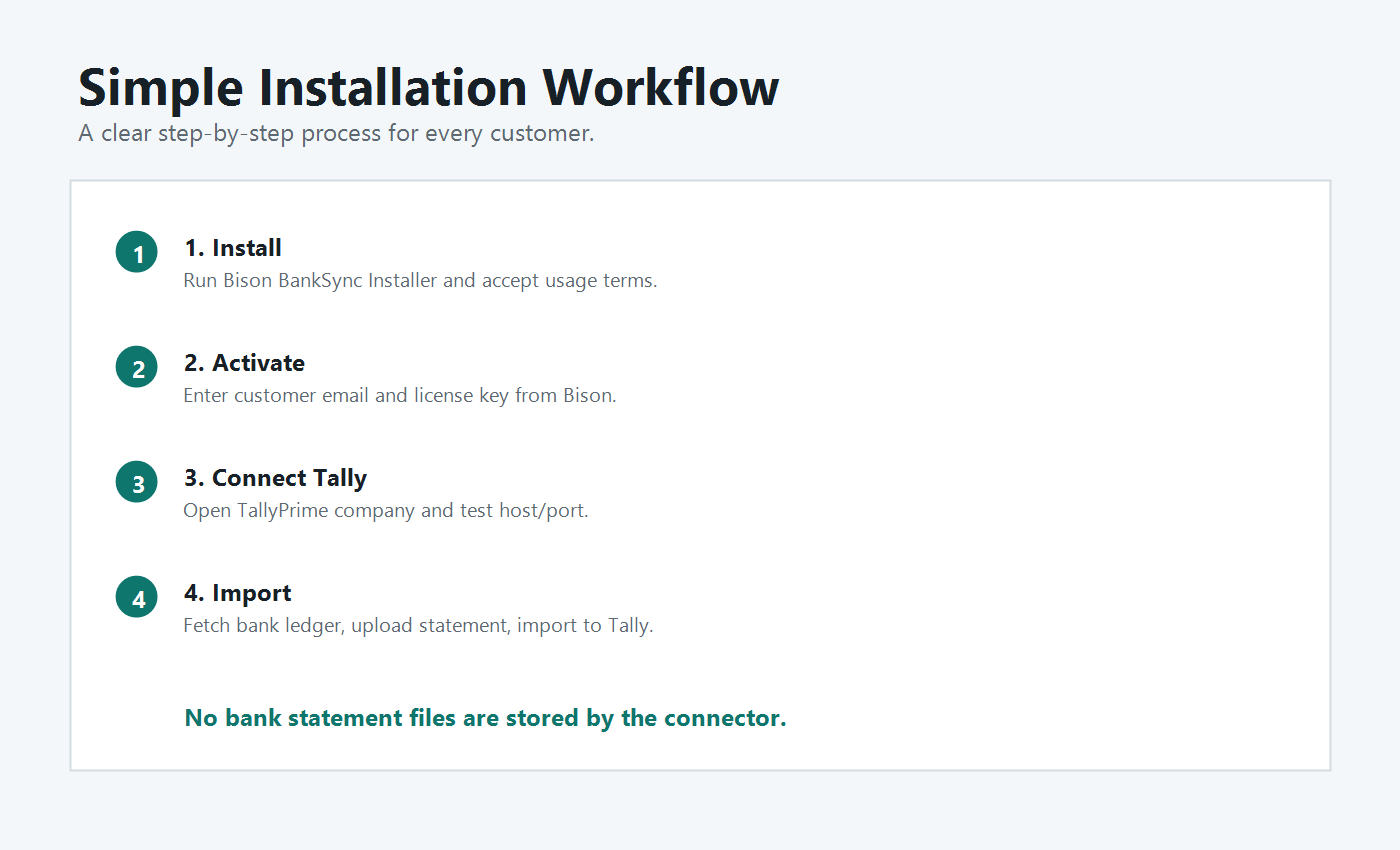
Installation workflow
Simple installation and usage workflow for customers.

Download and version

Latest Bison BankSync installer

Install the connector on the same computer or VPS where Tally Prime is available. Customers can compare this version with the version shown inside the desktop app footer.

Latest Version 1.0.5 Release date: 30-Jun-2026
  • Added ICICI Bank CSV, XLS, and PDF statement support
  • Improved dotted date parsing such as 21.05.2026
  • Licensed desktop connector
  • Tally bank ledger fetch
  • Duplicate checking against existing Tally vouchers
Download Windows Installer
  1. Download the installerClick Download Connector and save the setup file.
  2. Run setupAccept the license, usage agreement, and copyright terms.
  3. Activate licenseEnter customer email ID and the license key provided by Bison Infosolutions.
  4. Open Tally PrimeOpen the correct company and enable the Tally XML/HTTP port, normally 9000.
  5. Test TallyIn Bison BankSync, enter host and port, then click Test Tally.

Installation

How to install Bison BankSync

After downloading, run the installer and activate the license using the customer email and license key provided by Bison Infosolutions.

  1. Run setupAccept the license, usage agreement, and copyright terms.
  2. Activate licenseEnter customer email ID and the license key provided by Bison Infosolutions.
  3. Open Tally PrimeOpen the correct company and enable the Tally XML/HTTP port, normally 9000.
  4. Test TallyIn Bison BankSync, enter host and port, then click Test Tally.

Daily workflow

How to use the bank import

The customer works from one simple flow: connect Tally, fetch bank ledger, upload statement, check duplicates, and import.

  1. Open Bison BankSyncStart the connector and open BankSync from the desktop app.
  2. Fetch Bank Ledgers from TallySelect the correct Bank Accounts ledger from the opened Tally company.
  3. Upload bank statementChoose Excel, CSV, or supported text-based PDF statement file.
  4. Select date rangeImport only the required period.
  5. Prepare ImportReview detected rows and totals before sending to Tally.
  6. Check Duplicate EntriesSkip entries already available in the selected bank ledger.
  7. Import to TallyNew entries are imported against Suspense for later accounting adjustment.

Purchase

1 Year License

Rs. 2,499 inclusive of all taxes

Buy the Bison BankSync one-year license and contact Bison Infosolutions for activation and setup assistance.

Online payment: Credit Card, Debit Card, and Net Banking through PayU.
Other options: UPI QR Code and IMPS / NEFT / RTGS details are available at bison.co.in/pay.
  • Customer-wise licensing
  • Machine-wise activation
  • Installation support
  • Tally Prime connector guidance

Help and support

Need help with installation or Tally connection?

Our team can help with connector setup, Tally XML port configuration, license activation, and import workflow.

info@bison.co.in +91 9212522725

Support hours can be confirmed during purchase or onboarding.

FAQ

Common questions

Does Bison BankSync upload bank statements to Bison servers?

No. The statement conversion workflow is designed to process files locally through the customer browser and local connector.

Which Tally port should be used?

Tally Prime commonly uses XML/HTTP port 9000. If your Tally is configured on another port, enter that port in the desktop connector and test it once.

Can it import duplicate entries?

The workflow includes a duplicate check against existing Tally bank vouchers by selected bank ledger, date, amount, and side. Users should still review the result in Tally.

What ledger is used for imported entries?

The selected bank ledger is used with Suspense, so the accountant can later adjust entries to the correct party or expense ledger.